Showing posts with label Apple. Show all posts

Apple iCup

iCup is an innovative concept specially designed forApple. It’s key point that you can heat up any drink inside the cup by connecting it with the user’s notebook, as well as any device that supports USB connection, via a USB cable(in Park,at office,at library etc.) The key goal of the project is to ease life with more manageable features that ensure uninterrupted working opportunity, doesn’t matter the user goes to the park, library or working in the office. The featured Apple logo of the cup is actually a heat indicator that shows the temperature of the inside content, blue for cool, orange for warm and pink for hot, while enhancing the aesthetics. Moreover, it incorporates a displaceable handle that offers convenient fit into any small area and the changeable upper portion allows easy washing.
Every part of the iCup from Onur Karaalioglu is enhanced with advanced technologies and innovative ideas. The Apple cup has got everything like a heatproof body which anyone can touch and hold while being connected to the netbook, a heat filter, allochrous logo for easy handling, a heat coil and a durable base.
 
A person, sitting in a library, in their office, in a park or while working at home on their netbook will not have to long for a hot cup of tea or coffee or will no longer have to keep ordering for a fresh cup every time when finding it getting cold. For heating up your drink this special cup named as the iCup would hopefully not just be a concept and will soon be available at the Apple store. The specialty of this cup is that it is easy to use, easy to connect and most importantly, easy to wash. For washing the iCup, one will just have to bring out the inner part of the cup as it is of removable kind. So, once the washing process is done and it gets dry, you can easily place it again in the heatproof body. For further ease of use, this Apple iCup has been designed with a removable handle too.


http://www.zurmat.com/2011/08/04/apple-icup/

Warning: The Latest MacBook Air Packs A Less Powerful Version Of Thunderbolt

macbook-air-thunderbol
Apparently not all Thunderbolt ports are created equally. Anadtech discovered that the Thunderbolt chip within the latest MacBook Air is not the same found in the current MacBook Pro. The Air’s version packs less power and throughput resulting in less abilities. Hope you weren’t planning on hooking up two of those new fancy Thunderbolt Displays.
Thunderbolt is an amazing interconnect, capable of running four bidirectional, dual standards 10 Gbps channels. The capabilities are nearly endless as the single I/O port allows for nearly any interface normally associated with PCIe or DisplayPort. It’s how the latest MacBook Pros can run dual Thunderbolt displays that each feature a sort of docking station with three USB ports, one FireWire port, Gigabit Ethernet, and another Thunderbolt port.
The MacBook Air’s Thunderbolt is slightly different, though. It’s only capable of two 10 Gbps channels thanks to a less capable, but physically smaller, controller chip. This means among other points that the Air can only be able to run one Thunderbolt display. Anandtech notes that other manufacturers might use the same small controller card in their upcoming products.
Apple doesn’t hide this fact on the Air’s product page. “Or use the Thunderbolt port to connect the new Apple Thunderbolt Display and transform your ultracompact MacBook Air into a complete desktop workstation.” But they probably won’t stop an order with a MacBook Air and two Thunderbolt Displays. [Anandtech via AppleInsider, image via iFixit]

More News Here: http://techcrunch.com/2011/07/29/macbook-air-thunderbolt/

First “Light” iPhone Images Appear

1-1432133578


1-1432133578
And we’re off: the first photos of a “cheap” iPhone – not specifically of the iPhone 5 but of a light version of the iPhone 4 – are beginning to appear, the latest leak coming from a Vietnamese forum,Tinhte.
2-267753601We wouldn’t usually fall for this sort of thing but Tinhte has been correct in the past and so it’s at least worth a quick look.
What we’re seeing here is an iPhone 4 without front and back glass panels. Instead, there are two translucent plastic sheets and metal banding around the edge. This would make the iPhone considerably cheaper to build.
We’ve been hearing rumors of the “cheaper” iPhone for most of 2011 and the great prognosticator himself felt that an iPhone “lite” was imminent, potentially priced at pre-paid, developing market levels. After all, Tim Cook said he didn’t want the iPhone to be “just for the rich.”
UPDATE – As iawa2k notes, this could be simply a conversion kit. However, I found the seemingly matte or mottled surface to be the most potentially interesting part of this “leak.” Is it the real one? Who the heck knows, but we’d be remiss not to note potential candidates


Anynod’s Smart Cover Clone Pulled From Samsung Stores

smartcase
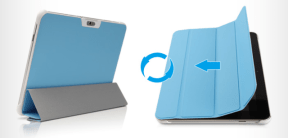
Anynod’s Smart Case hit the interwebs yesterday and caused more than a few people to call for Samsung’s head. Why? Well, Samsung retail stores throughout Korea where selling the blatant rip-off of Apple’s Smart Cover. But while Samsung was facilitating the case, it was actually made and distributed by Anynod. It doesn’t matter anymore. Samsung did the right thing and has pulled the case from its stores stating it wasn’t approved nor received the official “Designed for Samsung Mobile” certification.

As a general practice, Samsung Electronics reviews and approves all accessories produced by partners before they are given the “Designed for Samsung Mobile” mark.
In this case, approval was not given to Anymode for the accessory to feature this official designation.  We are working with Anymode to address this oversight and the product has already been removed from the Anymode sales website.  The product has not been sold.
This case caused an absurd amount of outrage. It’s just a tablet case. There wasn’t nearly the same amount of outcry when Apple debuted the Smart Cover. You know, the blatant rip-off of the InCase Convertible Magazine Jacket.


For More News Visit:  http://techcrunch.com/2011/07/19/anynods-smart-case-pulled-from-samsung-stores/

Apple makes jailbreaking that little bit harder, developers claim

Software and hardware giant Apple is trying to stop users from jailbreaking in their latest iOS 5 release, a group of developers has claimed.
According to the iPhone Dev Team, which regularly releases software packages that allows users to “jailbreak” their devices, the new version of the software will make it harder for users to go back to earlier versions of the software.
This can happen when users try out new software, and then go back to a jailbroken version of earlier software.
“Although it’s always been just a matter of time before Apple started doing this (they’ve always done this with the BBTicket), it’s still a significant move on Apple’s part,” the team says on its blog.
“They’ve stepped up their game.”

FOR MORE NEWS VISIT :  http://www.smartcompany.com.au/information-technology/20110629-apple-makes-jailbreaking-that-little-bit-harder-developers-claim.html

OS X Lion Full-Screen App Mode Doesn’t Play Well With External Displays


If you use multiple monitors on a regular basis, you might care about how Mac OS X Lion handles Full-Screen Apps when hooked to an external display. In short, it doesn’t work that well.

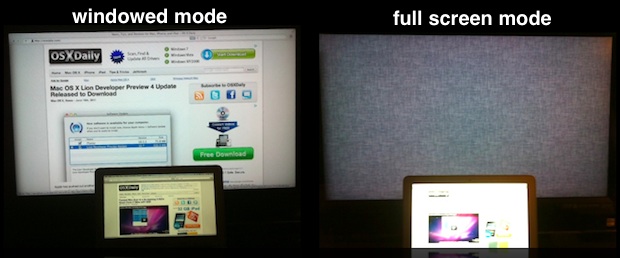
To be clear, multiple monitors work fine in Lion, everything is the same as past versions of Mac OS X, you can mirror or extend your display as usual, that’s all dandy. The problem arrises when you put an app into Full-Screen mode; this causes only the default display to go into full-screen view, and the external screen becomes just a large and unusable linen wallpaper filled placeholder.


Full-Screen Apps Built with MacBooks in Mind?
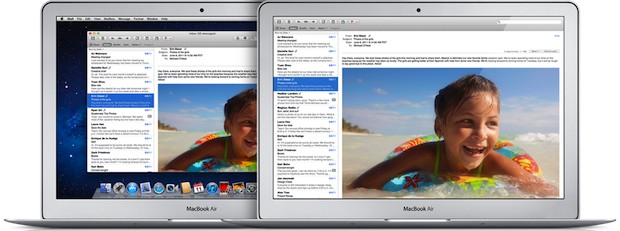
Looking at Apple’s web page for the Full Screen App feature, you’ll notice there are no desktop Macs shown, it’s all about the MacBook Air, so it’s entirely possible this feature was developed mostly with laptop users in mind because it benefits them the most.


Considering the use-case scenarios, you probably have plenty of screen real estate available if you use an iMac 27″ or if your MacBook Air is hooked up to a large 24″ external LCD. The pixel-saving feature of Full Screen apps is just less useful on a large display than on a smaller screen. Maybe Full-Screen apps were intended for smaller screens to begin with? The feature shines on the MacBook Air 11.6″ and other portable Macs, how useful is full-screen Safari at 2560 x 1440 anyway? As a commenter on MacRumors Forums says, “full screen apps address an issue specific to small screen devices and for larger screens that issue doesn’t need addressing”.

It’s Called “Developer Preview” for a Reason
Finally, remember that Lion is still a “Developer Preview”, meaning things we see now may not be finished and may ship differently in the final release next month. The way that Lion is currently handling full screen apps and external displays (as of DP4 build 11a494a) could be indicative of an unfinished feature. Maybe it’s even a bug? Maybe it will change come time to ship?

Or maybe not? If this is how Lion works with full-screen apps, it’s not that big of a deal, you can always just avoid the feature when your Mac is hooked up to an external display.

For More News Visit:  http://osxdaily.com/tag/mac-os-x-10-7/

How to Save 15% to 20% When Buying Mac OS X Lion

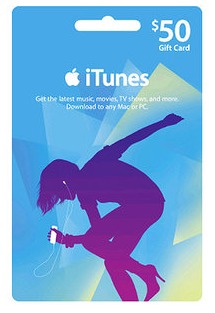
 OK so Mac OS X Lion won’t be released until next month, but if you do a little preparation now you should be able to save at least 15% off the already low $29.99 price. How? Simple, buying iTunes Gift Cards on sale and redeeming them on the Mac App Store.


Here’s the deal with eligible gift cards, they’re labeled a million different things, ranging from iTunes Store gift cards, to App Store gift cards, to iBooks gift cards, but they’ll all redeem on the App Store, just make sure they have that Apple logo.

Here’s a few sale examples:
RiteAid is currently offering $25 iTunes Gift Cards for $20
Best Buy was recently selling all iTunes cards at 15% discounts both in store and online
Target frequently has iTunes, iBooks, and App Store gift cards on sale for 20% off
Walmart has sold $50 iTunes gift cards for as little as $35

This is one of the unseen advantages to Lion, or anything else for that matter, being distributed exclusively through the Mac App Store, easy discounts!

You’ll probably need to shop around a bit and check your local newspaper (you know, those stacks of thinly sliced trees) or even your good old fashioned snailmail junkmail, thats where I found the RiteAid offer that I took advantage of. I heard that Target is discounting packs of them right now, but this probably varies by store and their website doesn’t indicate any such sale.

So grab a couple iTunes gift cards on sale, add the balance to your Apple ID now, and wait for Lion to come out. If you’re not thrilled with the App Store distribution model, don’t forget you can burn a Lion installation DVD yourself too.

For More News Visit:  http://osxdaily.com/tag/mac-os-x-10-7/

What is iCloud?

iCloud stores your music, photos, apps, calendars, documents, and more. And wirelessly pushes them to all your devices — automatically. It’s the easiest way to manage your content. Because now you don’t have to.


 Apple introduces iCloud, a set of free new cloud services that work seamlessly with applications on your Apple iPhone, iPad, iPod touch, Mac or Personal Computer to automatically and wirelessly store your content in Apple iCloud and automatically and wirelessly push it to all your mobile devices. When anything changes on one of your mobile devices, all of your devices are wirelessly updated almost instantly. "Apple iCloud keeps your important information and content up to date across all your devices. All of this happens automatically and wirelessly, and because Apple iCloud is integrated into our apps you don’t even need to think about it - it just works," said Steve Jobs.


Your content. On all your devices.
iCloud is so much more than a hard drive in the sky. It’s the effortless way to access just about everything on all your devices. iCloud stores your content so it’s always accessible from your iPad, iPhone, iPod touch, Mac, or PC.* It gives you instant access to your music, apps, latest photos, and more. And it keeps your email, contacts, and calendars up to date across all your devices. No syncing required. No management required. In fact, no anything required. iCloud does it all for you.

Free gets you a lot.
When you sign up for iCloud, you automatically get 5GB of free storage. And that’s plenty of room, because of the way iCloud stores your content. Your purchased music, apps, and books, as well as your Photo Stream, don’t count against your free storage. That leaves your mail, documents, Camera Roll, account information, settings, and other app data. And since those things don’t use as much space, you’ll find that 5GB goes a long way.

The apps you use every day are ready for iCloud.
When you update your iPhone, iPad, or iPod touch to iOS 5, your favorite Apple apps become seamlessly integrated with iCloud. Just like that. So all your content and information is available and up to date, no matter which device you’re using.

 iTunes in the Cloud
 With iCloud, the music you purchase in iTunes appears automatically on all your devices. You can also download your past iTunes purchases. Where you want, when you want.


Photo Stream 
 With iCloud, when you take a photo on one device, it automatically appears on all your other devices. No syncing. No sending. Your photos are just there. Everywhere you want them.


Apps,Books,Documents, and Backup 
 iCloud makes sure all your devices have the same apps. And the same books. And the same documents. iCloud also backs up your information. So if something happens, it can help save the day.

  
Contacts,Calendar and Mail
 iCloud stores your email, calendars, and contacts and automatically pushes them to all your devices. So you can switch from one device to another and still go about business as usual


For More Info Visit:  http://www.apple.com/icloud/what-is.html 


ipad 2.The Perfect Gift For The Father's Day


This Father's Day, get Dad an iPad 2. Pick one up at your favoriteApple Retail Store. Or buy online and get free shipping and engraving.* Just order by Friday, May 27, to make sure your iPad arrives in time.
Buy now

Creating An Apple Style Advert

Hey

This is going to be a simple tutorial which will show you how to make an Apple style advert. Its pretty simple and fun to do. It only uses a couple of effects and as a result you can probably do this within an hour. The source pack is included here if you want all the materials.

Step 1) The first step is to create your canvas. I have chose a 600 pixel by 750 pixel canvas size. Chose any style you want. Colour the background in #2c2c2c.

Step 2) On a new layer create a rounded square. The corners are 30px in diameter. It can be any colour you want. Align the square with the centre of the canvas by selecting the two layers, clicking on the transform tool in the toolbox and then selecting the align center in the toolbar. After you have done this nudge, with the arrow keys, the square up. This is so you can add in some extra text at the bottom.


Step 3) Create a new layer again, in the layers palette (Window > Layers) right click on the layer and select clipping mask or you can go to Layer > Create Clipping Mask.

Step 4) On this layer fill it in with a back to white gradient. Move the markers closer together and move slightly to one side. Add this to the new layer. Slightly ignore the image below because I was going to do this as a layer style, but it didn't work with the later steps.


Step 5) Create three new layers. On each layer draw a circle with purple, blue or green in it. Let them overlap the edges and be different sizes. Draw the circles so if there was an imaginary triangle between the three the centre of this triangle is approximately centre on of the square, check out the images below for a better idea.

Step 6) Select a layer and apply a Gaussian Blur, increase the blur dramatically. Apply this to all three layers using the same amount of blur.


Step 7) Merge these three layers by selecting all three and going to Layer > Merge Layers. Change the layer to a clipping mask.

Step 8) Create a new layer fill this in black. Go to Filter > Render > Lens Flare. Select the default option and adjust the brightness so it appears a medium brightness.

Step 9) In the layers palette change the blending option to screen. Move and transform the layer so the bright part is in the centre of the coloured circles.


Step 10) Create a new layer, add a clipping mask. Draw in a black square at the top of the rounded square. Add in a small dark grey stroke of 1px to finish.


Step 11) Repeat this process but with white at the bottom.

Step 12) Add in the main image. I have chosen an Apple TV. A transparent .png can be found in the source pack. Insert the image so that it is centre.

Step 13) Create two new layers below the image, draw in a dark and light blue ellipse and add a large Gaussian Blur as before.

Step 14) Duplicate the Apple TV layer. Go to Edit > Free Transform. Select the flip vertical option, move the new image so that it lines up with the bottom of the original image.

Step 15) With the new image selected go to Layer > Layer Mask > Reveal all. On this layer add in a black and white gradient so that only the very top of the image is shown. This is also known as a reflected shadow.


Step 16) Finally add in text. I have used Lucida Grande. Change the colours so they fit and look good. The Apple logo was included in part of the font on a Mac and is found by pressing Option + Shift + K. It may be available on other operating systems, have a look at your font maps for more information.


Step 17) You can always finish it off by adding in some small images and extra text. Both of the images below are in the source pack. The very bottom part is a small area for the small print.


It looks quite effect and could definitely be used as an advert. It could do with some minor touch ups. But otherwise it is quite cool. You can download the source here which includes the final psd.

iCal Replacement Icon Sets

I, as usual, have been searching around the web for icons. See my previous post, for the cool icon sets that a Mac use must have.

This time it is different icon sets for iCal. The icons are different variants of the original layout. Included are blue, green, orange and red. These icons can be used for all types of applications, such as the date in the top left corner (A regular feature from now on) .

Each set contain, one for every day of the year , plus ones that don't exist. (February 31st anyone).


As well as this there is also a blank set, to customize as you need.

You can download the whole pack here.

Included:

Blue, Green, Orange, Red Full set.
Blank Icon of Blue, Light Blue, Green, Light Green, Orange, Pink, Red.

The original creators website is located here.

Edit: These have now been changed.